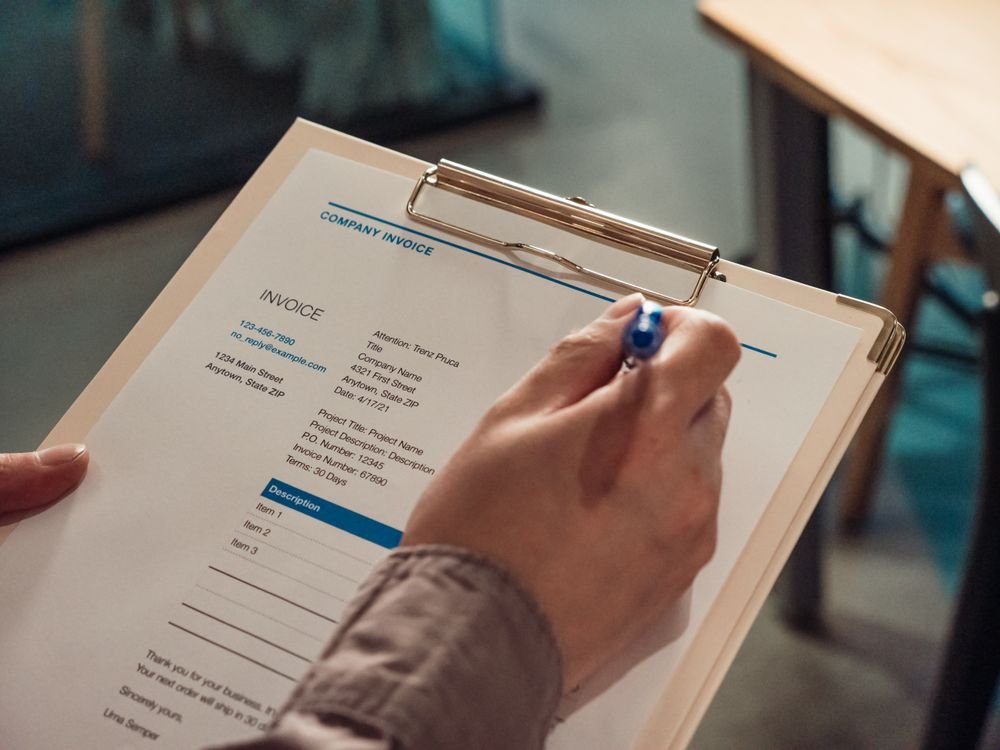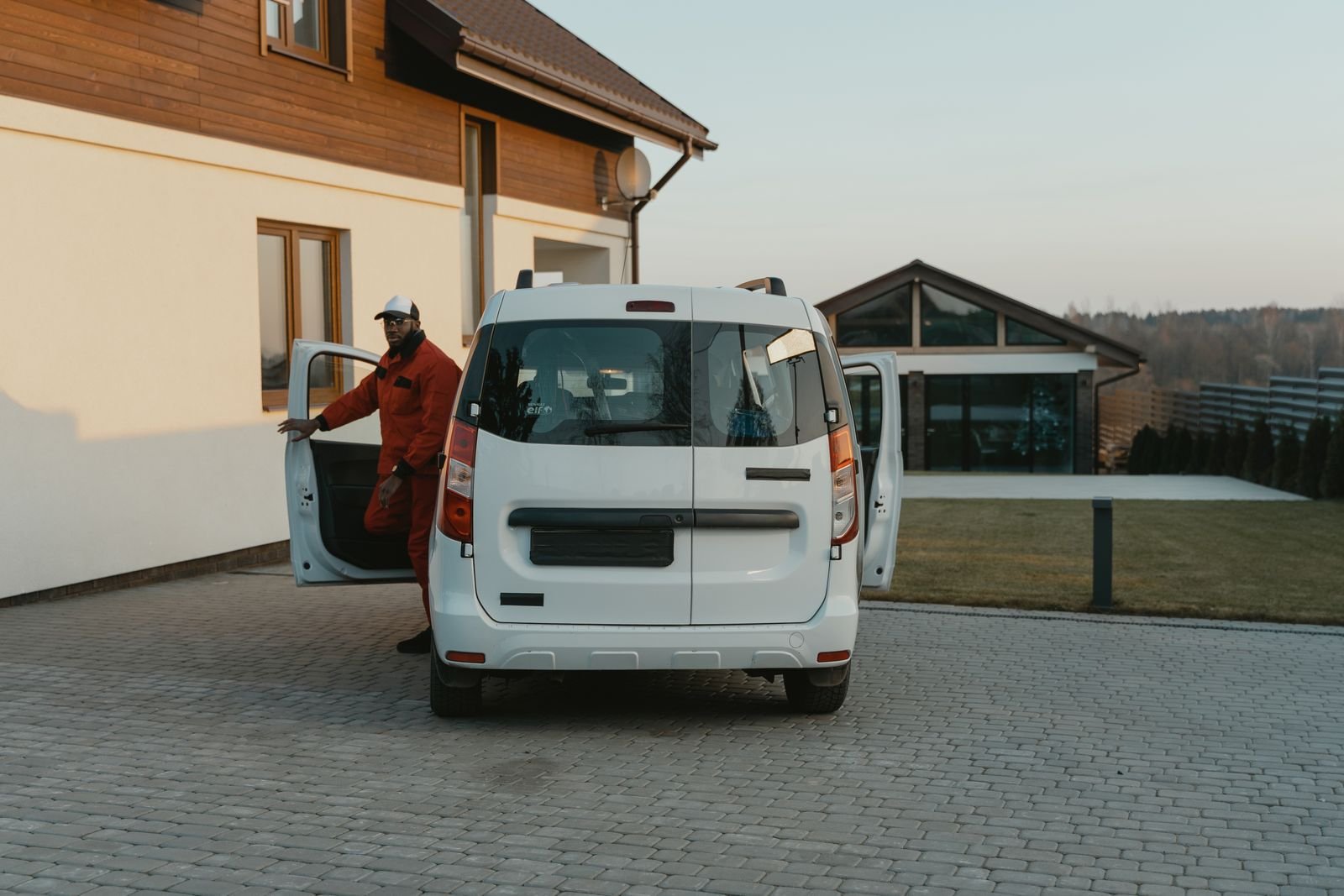
This is driveway invoicing: finish the job, build the invoice on the spot, and get paid before the van leaves. The invoice should leave with the van. To bill from the driveway, run a five-minute sequence: close the job, build the invoice from the job, send it by text or email, take the card payment, turning “I will invoice tonight” into money moving before you pull away. Jobber and Housecall Pro build this into their field apps; QuickBooks and FreshBooks do it from their mobile apps with an honest accounting-software trade-off; Square covers the payment layer. The workflow below works on any of them. Reader-supported: TradeProStack may earn a commission if you buy through links on this page. That never changes a recommendation. Vendor facts were checked on the vendors’ own pages on October 18, 2026.
Why late invoicing costs you more than the late fee
This is a mechanism, not a statistic. Every day the invoice sits unwritten is a day the customer cannot pay it. The longer the gap between the finished job and the bill, the colder the customer’s memory of the work’s value, and the more “administrative” your follow-up feels on both ends. Nobody needs a study to see the shape of it: the invoice competes with everything else the moment it is late, and it competes with nothing the moment the job ends. Driveway invoicing shortens payment lag by sending the bill at that exact moment — when it competes with nothing and the customer can pay on the spot.
The fix is not working harder at invoicing. The fix is moving the invoicing to the driveway, while the job details, the photos, and the customer’s goodwill are all still in the truck with you. That is driveway invoicing as a method: the bill is created at the job site, not at the office later.
Bill from the driveway: the 5-minute sequence
The sequence is the same whatever tool you use. What changes is which app does each step.
Step 1: Close the job in the app. Before the invoice, finish the record: job-site photos, the checklist, the customer’s signature. Jobber’s mobile app keeps the schedule, client details, invoicing, and payments in the crew’s pocket, with GPS clock-in, job-site photos, checklists, and client signatures without leaving the field. Housecall Pro ties customer details, services, parts, labor, and pricing to the job so the invoice builds without starting over, and lets you add notes, photos, and job attachments when you send it.
Step 2: Build the invoice from the job, not from memory. Housecall Pro describes this as creating “invoices from plumbing jobs in a few clicks”: the job’s details carry over, so nothing is retyped. Jobber’s version is “create and send invoices from the field.” QuickBooks mobile takes a different path: “create estimates and turn them into invoices right from your phone,” with its Instant Invoicing pitched as “create and send professional invoices the moment a job is finished.” FreshBooks frames it as “create professional looking invoices on the go: send your client an invoice right from their office and get paid by the time you get home.”
Step 3: Send it before you leave. Housecall Pro’s line is “get paid right from the jobsite”: send invoices by text or email from the mobile app the minute the job is completed. QuickBooks lets invoices go out by email or text message, and its app is free with the subscription with data syncing in real time across phone, laptop, and tablet. FreshBooks keeps desktop and mobile in sync, and its app notifies you when a client has viewed the invoice or when an invoice becomes overdue. The test is simple: if the send step needs you back at a desk, the sequence is broken.
Step 4: Take the payment on the spot. This is the step that turns the invoice into cash flow. Jobber: “allow customers to pay in person by tapping a card or digital wallet on a mobile device.” Housecall Pro: take payments on site with card on file, Tap to Pay, or a card reader, plus bank transfer and financing options, with the payment status staying connected to the job and customer. Square’s version needs no reader at all on Android: Tap to Pay lets you accept contactless payments with just the phone, the customer taps their device or card, and it works with Square Invoices.
Step 5: Confirm the receipt and move on. The job is not done when the money moves; it is done when the record says so. Housecall Pro’s invoice list shows open, paid, and past-due statuses tied to the job, and its mobile check deposit lets you deposit a customer check from the app for free and skip the bank trip.
Video: Housecall Pro’s mobile app overview (official YouTube channel).
What to offer at the door: payment options and what to say
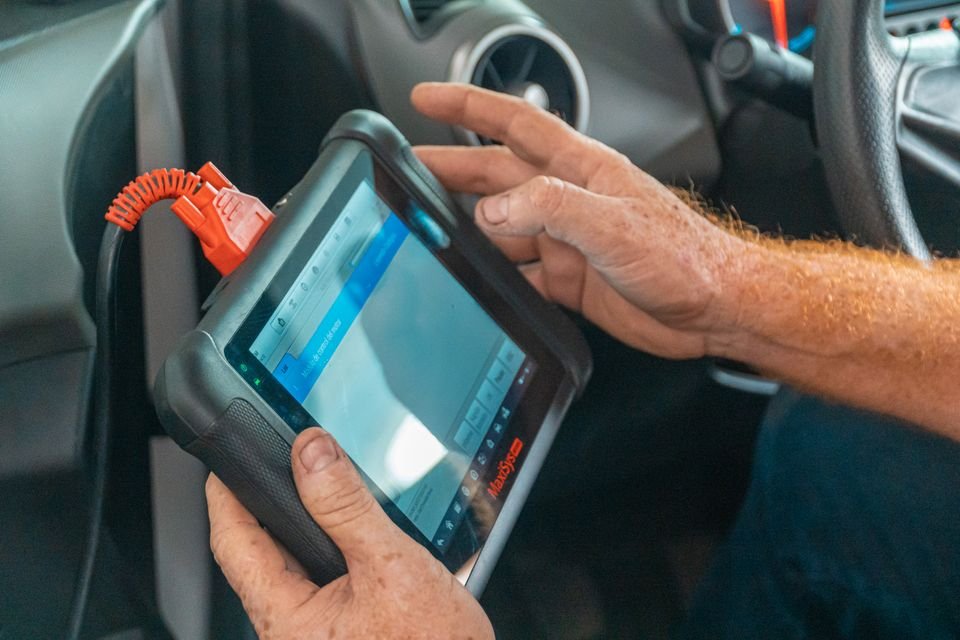
The wording matters as much as the tool. “I can take the card now, or I can text you the invoice and you can pay from the link” gives the customer two easy yeses and no homework. Card on file is the quiet winner for repeat customers: Square lets you save and charge cards on file, and Housecall Pro takes card-on-file payments on site. For one-off jobs, tap to pay or a texted invoice link closes it in under a minute.
Know the transaction costs before you choose, because they are the price of the driveway payment. All figures below are the vendors’ published rates. Jobber Payments: 2.9% plus 30 cents for online card payments, 2.7% plus 30 cents for Tap to Pay, 1% for bank payments. Housecall Pro: card processing “as low as 2.59%,” a 1% fee on bank payments. Square Invoices (free plan): 2.6% + 15¢ per tap, dip, or swipe, 3.3% + 30¢ per online transaction, and 1% for ACH bank transfer, with lower card rates on the Plus and Premium plans. Square sends unlimited invoices for free and takes its cut when the invoice is paid; features, fees, and availability can vary by account, device, and payment type, so check the current page for your setup.
Pick the payment path that matches how you already work, not the cheapest headline rate. A rate you will actually use at the door beats a cheaper rate attached to a workflow you skip.
When the invoice still goes unpaid
The driveway sequence handles the jobs you finish today. For the invoices that still slip, the follow-up has to be automatic or it will not happen. Housecall Pro’s invoice list flags open and past-due work and offers “invoice reminders to follow up on unpaid work without relying on a separate spreadsheet.” FreshBooks builds the follow-up into the mobile invoice settings: a “Send Reminders” toggle and a “Charge Late Fees” option with the percentage or flat amount and the days after the due date configurable. Square schedules automatic payment reminders and tracks invoice status in real time.
One honest caveat on FreshBooks: it does not natively integrate with QuickBooks. FreshBooks is itself accounting software, which means if you already run your books in QuickBooks, FreshBooks replaces it (third-party connectors aside) or you accept double entry. Say that plainly before you commit. Our FreshBooks pricing guide and QuickBooks pricing guide cover the accounting decision; this article covers the driveway workflow.
The limits of the driveway invoice
Three limits to know before you rebuild the process around the phone. Driveway invoicing is the workflow; these are the limits that come with it. First, sending needs connectivity on all of these tools. Invoice sending is not an offline action; do not plan a dead-zone workflow around it. (Housecall Pro advertises offline viewing and Jobber’s mobile app has offline visit notes, but neither is offline invoice sending.)
Second, some mechanics are plan-gated in ways the vendors do not fully spell out. Whether FreshBooks’ late-fee or reminder automation applies on the plan you buy, for example, is support-doc mechanics, not a published plan feature. Verify the specific toggle on your plan in a trial.
Third, match the tool to the job it does. Square is generalist payment tooling: excellent at the payment layer (card on file, tap to pay, free invoice sending, recurring invoices, digital receipts), but it is not a field-service system. No trade scheduling or dispatch, no job costing. If you need the invoice tied to the schedule, the crew, and the job record, that is what Jobber and Housecall Pro are for. Our Jobber review, Housecall Pro review, Jobber vs Housecall Pro, and the best invoicing apps for plumbers cover those decisions in depth, and booking the diagnostic covers the on-site workflow sibling to this one.
The bottom line for your shop
If you already run Jobber or Housecall Pro, start there: the mobile invoicing is inside the app your techs already carry, and the driveway sequence is a training problem, not a buying problem. If you run your business on QuickBooks or FreshBooks, the mobile apps cover the send step honestly, with the accounting trade-off stated above. If what you are missing is only the payment moment, Square’s tap-to-pay and invoicing layer closes it without a field-service system.
Whichever you use, the rule is the van rule: no invoice leaves the driveway unsent. Everything after that is follow-up.