TradeProStack is reader-supported. When you buy through links on this site, we may earn a commission. Our recommendations come from published vendor documentation and Google guidance, and affiliate relationships do not change our verdicts or ordering.
Quick Take: use both, in sequence
Choosing between a review link or QR code is not really a choice between two rivals. For most small trade shops, the practical answer is to use both, in sequence: mention a QR code at the door for the customer who wants to act now, then send a review link by text or email later the same day for everyone else.
A link sent by text or email wins when the customer is not standing with you, or when you want a follow-up you can retry. It arrives on a device the customer already uses, and it can be re-sent. Its weakness is that it depends on having a correct phone number or email address, and on the customer opening a later message.
A QR code wins at the door when the customer is present, phone in hand, and willing to act now. One scan opens the review form with nothing to type and nothing to remember. Its weakness is everything that has to be true at that moment: phone present and charged, camera working, signal available, code printed large and undamaged, and the code pointing at the right location.
A tap card, which a customer taps with a phone instead of scanning, is a niche extra, not a replacement for either method. It is a third-party product, not a feature of GoHighLevel or NiceJob, and it still has to point at the same Google review link. Consider it only if your shop already does a lot of face-to-face handoffs and wants a reusable door-step prop.
If you already use GoHighLevel, its review-request automation can carry the link half of this sequence: explore GoHighLevel review-request automation.
How did we research this?
This guide is documentation-based research. It draws on Google Business Profile help pages and Google review policy pages, GoHighLevel help documentation, and NiceJob help documentation, all read in October 2026. TradeProStack did not test any product hands-on for this guide, and no scan rate, tap rate, click rate, or review completion rate appears in it, because no such statistic exists in the evidence used.
This guide covers mechanics only: how each method reaches the customer, what it needs to work, and what can go wrong. It does not own the wording of the ask or the timing of the ask. For wording and the full list of Google bans, see how to ask for a Google review without breaking Google’s rules. For timing, see when to ask for a review (same-day window).
What does Google actually give you: a link and a QR code?
Google itself offers both methods, so this is a practical choice, not a question of which method Google allows. From your Business Profile, you go to Read reviews, then Get more reviews, and you can share the link or the QR code. Google says you can add them in customer emails, receipts, and printed media.
The link can be copied and pasted into a text, an email, an invoice, or a signature. The QR code can be downloaded and printed on a card, a receipt, an invoice, or a magnet. Because both come from the same place, the destination is the same review form either way. What changes is how the customer gets there, and when.
That shared destination matters for the rest of this guide. A QR code is not a different review system. It is a printed shortcut to the same link, and a tap card is a physical shortcut to the same link as well. Judge each method on the steps it asks of the customer, not on where the review ends up.
How does a review link actually work?
A review link travels inside a message the customer already knows how to open. You send it by text or email, the customer taps it, and the review form opens. Nothing has to happen at the door, and nothing has to be printed. That is the link’s main strength: it works for customers who are away, for jobs finished while the customer was out, and for recurring routes where no handoff conversation happens at all.
In GoHighLevel, review-request messages are built from SMS and email templates. The SMS template uses the token {{reputation.review_link}}, which fills in the review link for that customer. The controls let you set when to send after check-in, repeat the message until the customer clicks it, with a custom interval and a maximum number of retries. Email controls mirror the SMS controls. A workflow action can also trigger the request automatically, for example after an appointment status change.
The Review Link itself has two options in GoHighLevel: Review Balancing, which spreads requests across connected platforms, or a Custom Link to a single destination, such as your Google review page. If you only want Google reviews from this sequence, the Custom Link option is the one that points every request at the same place.
The link’s friction points are practical, not technical. You need a correct phone number or email address on file. The message can sit unopened, or get buried under other messages. And a customer who is not signed in to a Google account on that phone will hit a sign-in step before writing. Test the flow on a signed-out phone before you rely on it, so you know what the customer actually sees.
How does a QR code actually work?
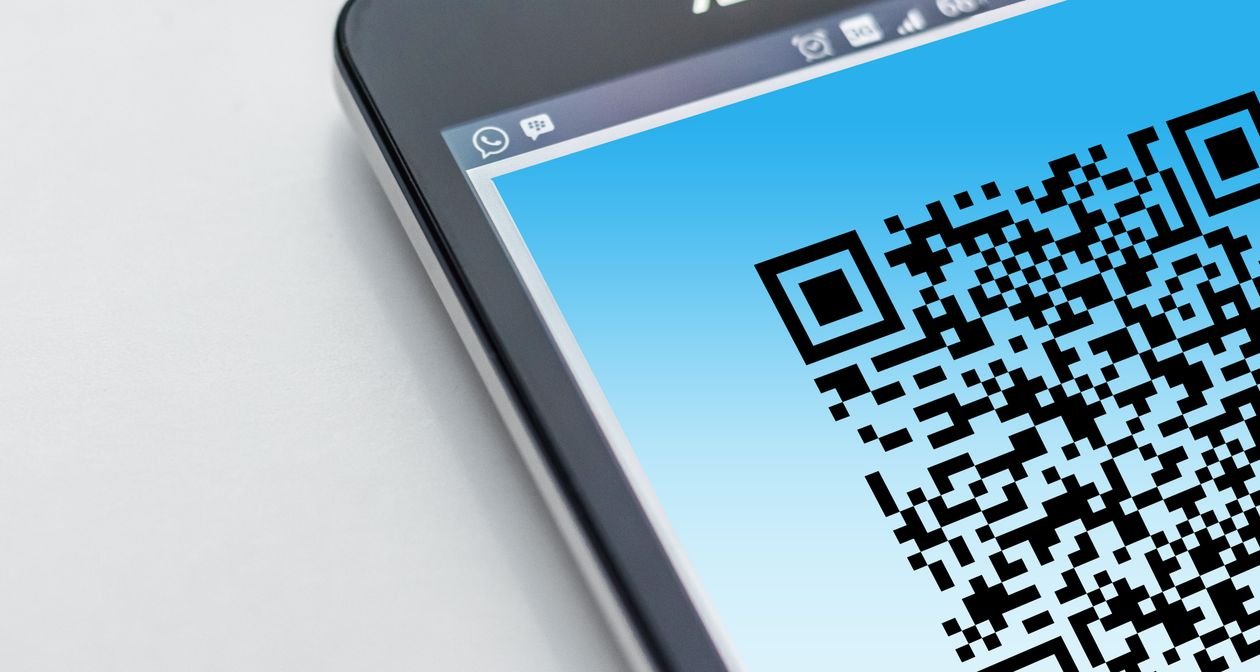
A QR code works by removing typing from the request. The customer opens the phone camera, points it at the code, and taps the link that appears. At the door, that is the fastest path from a finished job to an open review form, and it needs no contact details on file. It also needs no follow-up message, because the request happens in the moment.
GoHighLevel offers two different QR routes, and they should not be confused. The Reputation route lives under Reputation, then Settings, in the Reviews QR section. You choose the review page, click Create QR Code, and a unique code is generated for that page. You can create multiple codes for different pages, such as Google Reviews, Facebook Reviews, or a custom feedback form, add a logo or text, and download the code as a PDF to print on flyers, receipts, or business cards. Scan counts are shown in the platform’s Tracking section.
Source: GoHighLevel help article, How to Set up Digital QR Code for Maximising Review Generation. Video plays on click only, with no autoplay.
The second route is the Sites QR builder, under Sites, then QR Codes. It is a general QR builder, not specific to reviews, but one of its QR types is Review Link. You name the code, pick Review Link, paste in the review link, and customize shape, colors, dot style, marker borders, frame text, and logo. Its QR codes use dynamic URLs, so you can update the destination at any time without generating a new QR image. You can also test the code inside the builder before saving it, and export it as PNG, SVG, or PDF.
Print placement is where QR codes are won or lost. The code belongs where the customer will actually see it and have a phone in hand: the invoice, a leave-behind card, a receipt, or a magnet. Print it large, with clear contrast, and keep it away from folds, creases, and damp surfaces that can damage it. For multi-location shops, check that each printed code points at the right location, because a code for the wrong shop is worse than no code at all.
Before printing anything in quantity, test the code on more than one phone, including an older phone and a phone that is not signed in to your accounts. A code that scans on your phone may fail on a customer’s phone, and a print run is a bad time to find that out. This is also the point where the QR code’s failure modes show up plainly: phone left inside, dead battery, no signal at a rural job, code printed too small or damaged, or a customer who simply does not want to act on the spot.
What about NFC or a tap card?
A tap card replaces the camera step with a tap. The customer holds a phone near the card, and the phone opens the review link. In trade-community discussion, one user describes exactly this setup: a card handed over after the walkthrough, which the client taps to open the Google review link. That is the full extent of the tap-card evidence used here: a single community anecdote, not a vendor feature, not a Google rule, and not a measured result.
No evidence was found that GoHighLevel or NiceJob sells or provides tap cards as a built-in feature, so do not buy a tap card expecting it to come with either platform. A tap card is a third-party product you buy separately, at a price this guide does not state because no vendor price was verified, and it still has to point at the same Google review link underneath. Google’s policy pages read for this guide do not name tap cards, so this guide states no Google position on them.
The tap card’s trade-off is narrow. It removes one step, opening the camera, but it adds a physical object you must buy, carry, keep undamaged, and replace if lost. It also needs a phone with NFC enabled. For a shop that already does a lot of face-to-face handoffs, it can be a handy reusable prop. For a shop whose customers are often away, or whose jobs end without a conversation, it adds nothing a printed code and a follow-up link do not already cover.
Link vs QR code vs tap: side by side
| Method | What the customer does | What must be true | What can go wrong | Best fit |
|---|---|---|---|---|
| Review link by text or email | Opens a message and taps the link | Correct phone number or email on file; customer opens the message later | Wrong number, message buried or unopened, sign-in step before writing | Customer away, recurring routes, follow-ups you can retry |
| QR code at the door | Opens the camera, scans, taps the link | Customer present, phone in hand and charged, camera working, signal available, code printed large and undamaged | Phone left inside, dead battery, no signal, code too small, damaged, or pointing at the wrong location | Face-to-face handoff where the customer wants to act now |
| QR code left behind | Scans a card, invoice, or magnet later | Code kept, visible, and undamaged; customer still willing later | Card thrown away, code damaged, no moment to answer a question | Jobs where the customer was away, or wants time before deciding |
| NFC tap card | Taps a phone against the card | Customer present, phone with NFC enabled, card bought, carried, and undamaged | Card lost or damaged, NFC off, third-party product with no vendor support from GoHighLevel or NiceJob | Shops with frequent face-to-face handoffs that want a reusable prop |
No row in this table is ranked by performance, because no comparative statistic exists in the evidence. The table compares steps, requirements, failure modes, and fit only. Any claim that one method gets more reviews than another would need evidence this guide does not have.
When does a review link or QR code make more sense?
A review link or QR code makes more sense depending on where the customer is, not on which method is newer. Use the link on its own when the customer is away, when the job finished without a conversation, or when you run recurring routes where a handoff ask would repeat every visit. The link can be sent, re-sent, and retried, and it needs no printed material at all.
Lead with the QR code when the customer is present, the walkthrough just finished, and the customer is engaged and phone in hand. That is the one situation where the code’s speed matters, because the moment passes once the technician leaves. A code left behind on an invoice or card covers the middle case: a customer who was away, or who wants time, but who still has something physical to scan later.
For multi-location shops, the link has one quiet advantage: there is no printed code to get wrong. A text or email goes to the right customer for the right job, while a stack of printed cards can mix locations if it is not checked. If you print codes, label each batch by location and test one card from each batch before it goes out.
What Google bans, in short
The mechanics in this guide only work inside Google’s rules, so the short version belongs here. The full list, with wording guidance, is in how to ask for a Google review without breaking Google’s rules. In short: no incentives of any kind for posting, changing, or removing a review; no selective solicitation, which means asking everyone, not only customers you expect to be happy; no pressuring a customer to leave a review while on the premises; and no requested wording, which includes asking for a review that names a staff member.
The door-step rule that matters most for this guide follows from the ban on on-premises pressure. Invite the customer, hand over the code or mention the link that follows, and leave the customer to act in their own time. Never hand over your own phone for the customer to write on, and never stand over a customer while they write. Both practices turn an invitation into pressure, and the second one also puts your unlocked phone in someone else’s hands.
A door-step sequence that follows the rules
A workable door-step sequence has five steps, and only one of them mentions the review at all.
- Finish the walkthrough and let the customer see the result.
- Say one neutral sentence, such as: If you have a minute later, a Google review helps other homeowners find us. Here is the link, or here is the code.
- Hand over the card, or mention the text that follows.
- Send the link by text or email later the same day. The timing detail lives in when to ask for a review (same-day window), and this guide does not restate it.
- Send one or two polite follow-ups at most, then stop.
The script wording must stay neutral. Do not ask for five stars, do not ask the customer to name a staff member, and do not offer a reward. If the door-step ask surfaces a complaint instead of a review, the next step is the reply, not another ask: see how to reply to a 1-star review.
How to set it up in GoHighLevel
Start with the destination. Decide whether every request should point at Google alone, using a Custom Link, or spread across platforms, using Review Balancing. Then build the two halves of the sequence: the code for the door, and the link message for later the same day.
For the code, use the Reputation route if you want the code tied to a review page with scan tracking, or the Sites QR builder if you want the Review Link type with a destination you can update without reprinting. Either way, test the code on more than one phone before printing, and print it large, on material that survives a truck, a pocket, and a kitchen counter.
For the link message, build the SMS and email templates around the {{reputation.review_link}} token, set the send timing and the repeat-until-clicked controls with a maximum retry limit, and trigger the workflow from a genuine job-complete event. One gap to close before buying: GoHighLevel help documentation does not state which base plan includes Reputation, so confirm the plan that includes the features you need before subscribing. For the full product picture, see our GoHighLevel review, and compare plans at GoHighLevel.
How to set it up without software, and where NiceJob fits
No software purchase is needed to run the both-in-sequence method. Google’s own link and QR code, copied from your Business Profile, cover both halves: print the code for the door, and paste the link into a text or email later the same day. That free route is the baseline every paid option has to beat, and for a shop with a small number of jobs each week, it may be all you need.
NiceJob sits between the free route and a full platform. Its subscriptions include a QR code, found under Settings, then Product Settings, then Review Settings, and its help documentation describes sending manual invites from the Stories page on a mobile browser right after the job, with no app download required. That field-invite route suits a technician who wants to send the link message from the driveway without a CRM workflow behind it. No NiceJob price is stated here, because no NiceJob price was verified from a vendor source for this guide.
Real limitations
No method in this guide fixes a bad job. A QR code cannot rescue a customer who is unhappy, away, or without signal, and a link cannot rescue a job that is not genuinely finished. Automation also cannot decide on its own who is genuinely finished: multi-day jobs, return visits for a part, and unresolved issues all need a human completion call first, and the timing guide linked above covers those cases.
A printed code has one more limitation worth naming. Once it is printed, it cannot be updated, unless the destination behind it is editable. GoHighLevel Sites QR codes use dynamic URLs, so their destinations can be updated without reprinting, but a code downloaded from Google or printed on a magnet stays fixed. Print small batches, and re-check the destination each time you reorder.
The verdict: use both, in sequence
For most small trade shops, the default is both, in sequence. Mention the QR code at the handoff, then send the link by text or email later the same day. The code catches the customer who wants to act now. The link catches everyone else, including customers who were away, customers without signal at the door, and customers who need time.
The exceptions follow the same logic. Go link-only for away customers and recurring routes, where a door-step prop would repeat every visit. Go QR-forward for face-to-face handoffs, where the moment is the opportunity. Add a tap card only as an optional extra, for shops that already do a lot of face-to-face handoffs and want a reusable prop, and only with the understanding that it is a third-party product pointing at the same link.
If you want automation to carry the link half, GoHighLevel review-request automation is the option this guide’s evidence supports, with the plan question above confirmed before buying. If you want a narrower review tool, NiceJob is the plain-link alternative, with prices to confirm with the vendor. And if you want no new software at all, Google’s own free link and QR code already run the whole sequence. For wording, see how to ask for a Google review without breaking Google’s rules. For timing, see when to ask for a review (same-day window). If an ask surfaces a complaint, see how to reply to a 1-star review.